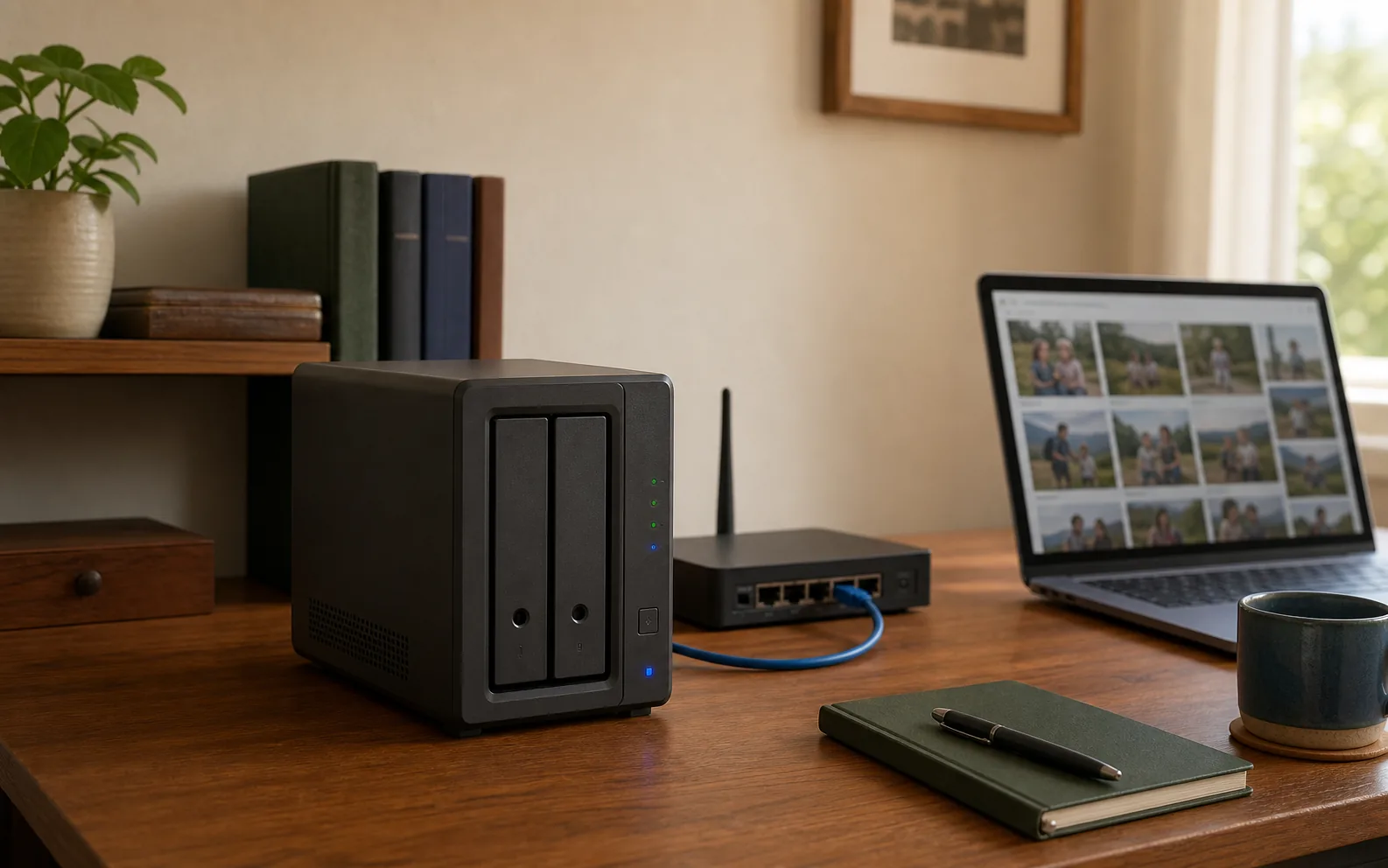
A NAS, or network-attached storage device, is a small computer that provides shared file storage over your network. Instead of plugging one external drive into one computer, a NAS can make selected folders available to several computers, phones, media players and other authorized devices.
A NAS can centralize family photos, computer backups and shared documents, but it is not automatically a complete backup plan. It still needs updates, account security, drive monitoring and another copy of irreplaceable data somewhere else.
The quick answer
A NAS is useful when more than one device needs reliable access to the same files, when you want local computer backups without moving a USB drive around, or when a photo and media library has outgrown one computer. If you only need occasional storage for one laptop, an external drive may be cheaper and simpler.
The Storage Networking Industry Association defines NAS as storage connected to a network that provides file access services to clients, commonly through file-sharing protocols such as SMB or NFS. See the SNIA NAS definition.
How a home NAS works
A typical home NAS contains a processor, memory, network connection, operating system and one or more storage drives. It normally connects to your router or network switch with Ethernet. Other devices reach it through the local network rather than through a direct USB cable.
- The NAS connects to the router or switch.
- You create users, shared folders and access permissions.
- Computers and phones connect through an app or standard network file sharing.
- The NAS stores the files on its internal drives and makes them available to permitted devices.
- Scheduled jobs can copy computer folders, photos or NAS data to another destination.
The NAS does not replace your router. The router moves traffic between devices and the internet; the NAS provides storage and related services. For best consistency, connect the NAS by Ethernet even when laptops and phones use Wi-Fi.
What people use a NAS for at home
Automatic computer backups
A laptop can send scheduled backups to the NAS whenever it is at home. This removes the need to remember a USB drive, although the backup software must still be configured and checked. A successful job notification is useful; a periodic restore test is better.
A shared photo library
Several family members can place photos in one organized library instead of keeping separate collections across phones and computers. Some NAS platforms provide mobile upload and photo browsing, but features and supported formats vary. Confirm the vendor’s current mobile-app behavior before buying around this use case.
Documents shared between devices
A shared folder can hold household records, scanned manuals or collaborative files. Permissions matter: children, guests and media devices do not need access to tax documents or full backup folders. Create separate accounts rather than giving everyone one administrator login.
Local media storage
A NAS can store music and video files for compatible televisions and media applications. Smooth playback depends on file format, network capacity and whether the NAS must convert the video while streaming. Do not assume every entry-level model can convert every format in real time.
NAS vs external drive vs cloud storage
| Option | Best fit | Main tradeoff |
|---|---|---|
| External drive | One computer and occasional backups | Must be connected and handled manually |
| NAS | Several devices, shared files and local automated backups | More setup, maintenance and upfront hardware |
| Cloud storage | Easy remote access and an offsite copy | Ongoing subscription, upload time and provider dependence |
These options are not mutually exclusive. A practical plan might use a NAS for fast local access and automated computer backups, then copy the most important NAS folders to encrypted cloud storage or a drive stored away from the home.
RAID is useful, but it is not a backup
Many multi-bay NAS devices can keep redundant data across drives. Depending on the configuration, this may allow the system to continue operating after one drive fails. That protects availability; it does not create an independent historical copy.
Accidental deletion, malware, file corruption, theft, fire, electrical damage or a failed NAS can affect every drive in the enclosure. A synchronized deletion can also reach another location if the job is configured only for mirroring. Keep at least one separate backup with version history or offline protection.
Use the 3-2-1 rule for important files
The 3-2-1 approach keeps three copies of important data, on two different types of storage, with one copy stored offsite. The U.S. Cybersecurity and Infrastructure Security Agency includes this model in its data backup guidance.
For a home photo archive, the working copy might live on a computer, the first backup on the NAS, and the offsite copy in a reputable cloud backup service or on an encrypted drive stored elsewhere. If the NAS becomes the primary library, create two additional copies rather than counting mirrored NAS drives as separate backups.
What to decide before buying a NAS
How much usable storage you need
Add the data you have today, expected growth and the backup history you want to retain. Redundancy can reduce usable capacity, and snapshots or file versions require additional space. Avoid choosing drives based only on their combined label capacity.
How many drive bays make sense
A one-bay unit is simple but cannot provide drive redundancy inside the enclosure. Two bays are a common starting point for households that want mirrored availability. More bays provide additional layout and growth options, but also increase cost, size, noise and power use.
Which applications you genuinely need
File sharing and backups require less processing power than live video conversion, virtual machines or many simultaneous applications. Write down the required jobs before comparing hardware. Buying for a long list of hypothetical applications usually adds complexity without improving the core backup plan.
Where the NAS will live
Hard drives make sound and produce heat. Choose a dry, ventilated location near Ethernet and power, but not next to a bed or in a sealed cabinet. A small uninterruptible power supply can provide time for an orderly shutdown during a brief outage, but it does not replace backups.
A safe first-day setup
- Install only drives listed as compatible by the NAS vendor.
- Connect the NAS to the router or switch with Ethernet.
- Install current system updates before storing important data.
- Create a unique administrator password and separate everyday user accounts.
- Enable multi-factor authentication if the platform supports it.
- Create shared folders with the minimum permissions each user needs.
- Configure one small backup job and verify that files can be restored.
- Add an independent offsite or offline copy before moving irreplaceable files.
Avoid exposing the administration page or file-sharing ports directly to the internet. If remote access is necessary, begin with the vendor’s maintained access method or a properly configured VPN, keep the software updated, and review account logs. Convenience should not turn the NAS into a public server by accident.
Who should buy one?
A NAS makes sense when your household has several computers, a growing photo archive, recurring local backups or files that need to be shared without depending entirely on a cloud subscription. It also suits people willing to monitor storage health, install updates and maintain another backup.
Skip it for now if one external drive satisfies your needs, if every important file already has a dependable local and offsite backup, or if you do not want another device to administer. A simpler backup that is checked regularly is safer than a sophisticated NAS that is never monitored.
Bottom line
A NAS is shared storage with computer-like responsibilities. It can make local files and backups far easier to organize across a household, but redundancy inside the box does not protect against every failure. Decide what data it will hold, who needs access, how it will be backed up and who will maintain it before choosing hardware.