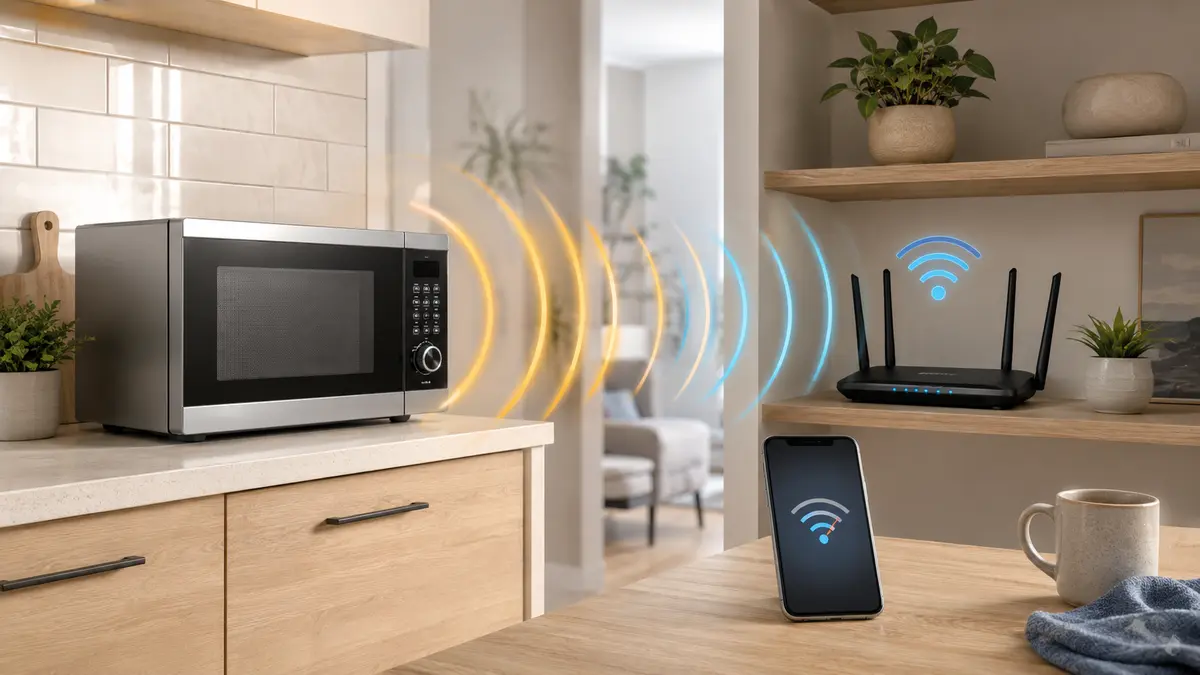
If your WiFi disconnects when microwave is on, the timing probably is not a coincidence. Microwave ovens and many home Wi-Fi devices operate around the same 2.4 GHz frequency range, so a nearby microwave can temporarily disrupt a weak or busy wireless connection.
The fastest fix is usually to connect the affected device to 5 GHz or 6 GHz Wi-Fi. If that is not possible, moving the router, adjusting the 2.4 GHz settings, or improving coverage can make the connection more reliable.
This guide explains how to confirm that the microwave is actually causing the problem and which fixes are worth trying first.
Why a Microwave Can Disrupt Wi-Fi
Most home routers broadcast at least two Wi-Fi bands:
- 2.4 GHz offers longer range and better wall penetration.
- 5 GHz usually provides higher speeds and less household interference.
- 6 GHz is available on compatible Wi-Fi 6E and Wi-Fi 7 equipment.
Microwave ovens heat food using energy centered near 2.45 GHz. That sits inside the same general frequency range used by 2.4 GHz Wi-Fi.
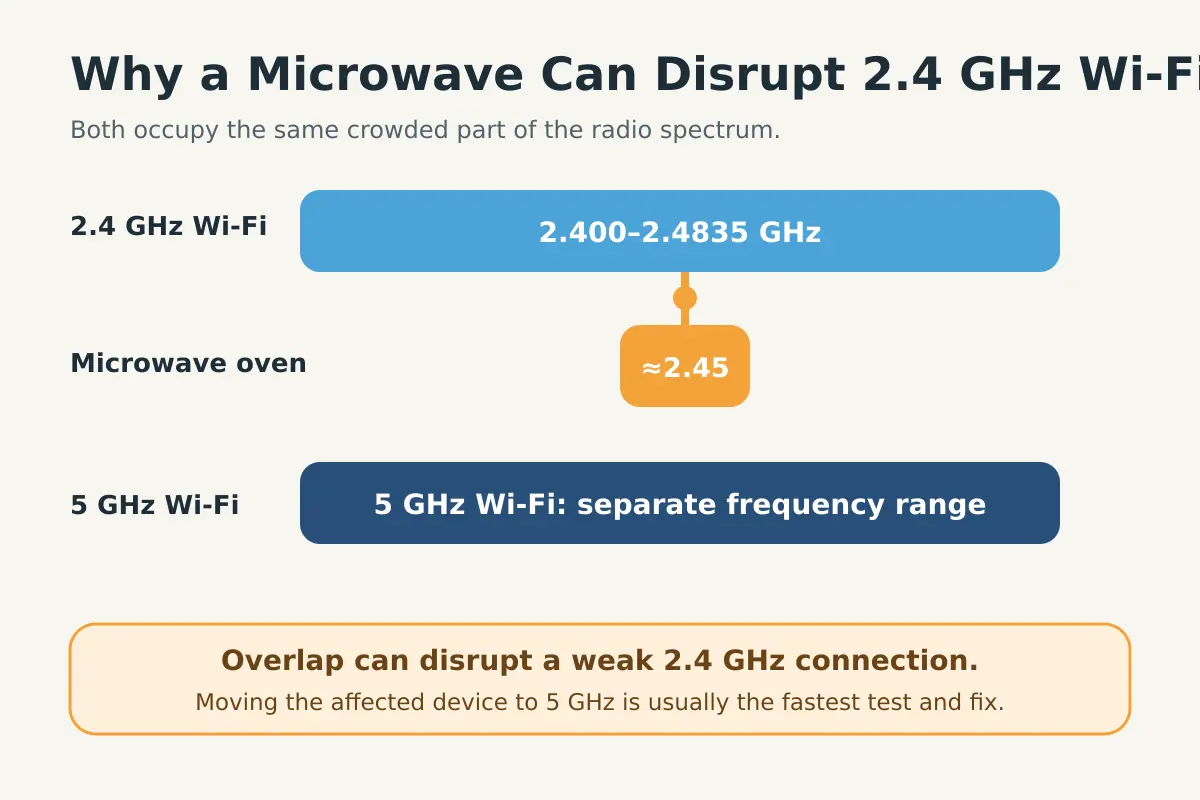
Your router and phone exchange signals using very little radio power. Even limited interference near the same frequency can make those signals harder to distinguish. The Wi-Fi equipment may have to wait, retransmit lost packets, or briefly disconnect.
Cisco’s wireless RF guide lists microwave ovens among the non-Wi-Fi technologies that can interfere with the 2.4 GHz band. Apple’s Wi-Fi guidance similarly notes that microwave ovens and several other household devices share frequencies with 2.4 GHz Wi-Fi, making 5 GHz better suited to avoiding this type of interference.
The microwave does not need to be next to the router for a problem to appear. Interference becomes more noticeable when:
- The affected device already has a weak Wi-Fi signal.
- The router is inside a cabinet or behind several walls.
- The device supports only 2.4 GHz.
- Several nearby networks are competing for the same channels.
- The router, microwave and device are positioned in the same part of the home.
First, Confirm That the Microwave Is the Cause
Do not change several router settings at once. A short comparison test can tell you whether the problem is related to the microwave, general Wi-Fi coverage or the internet connection itself.
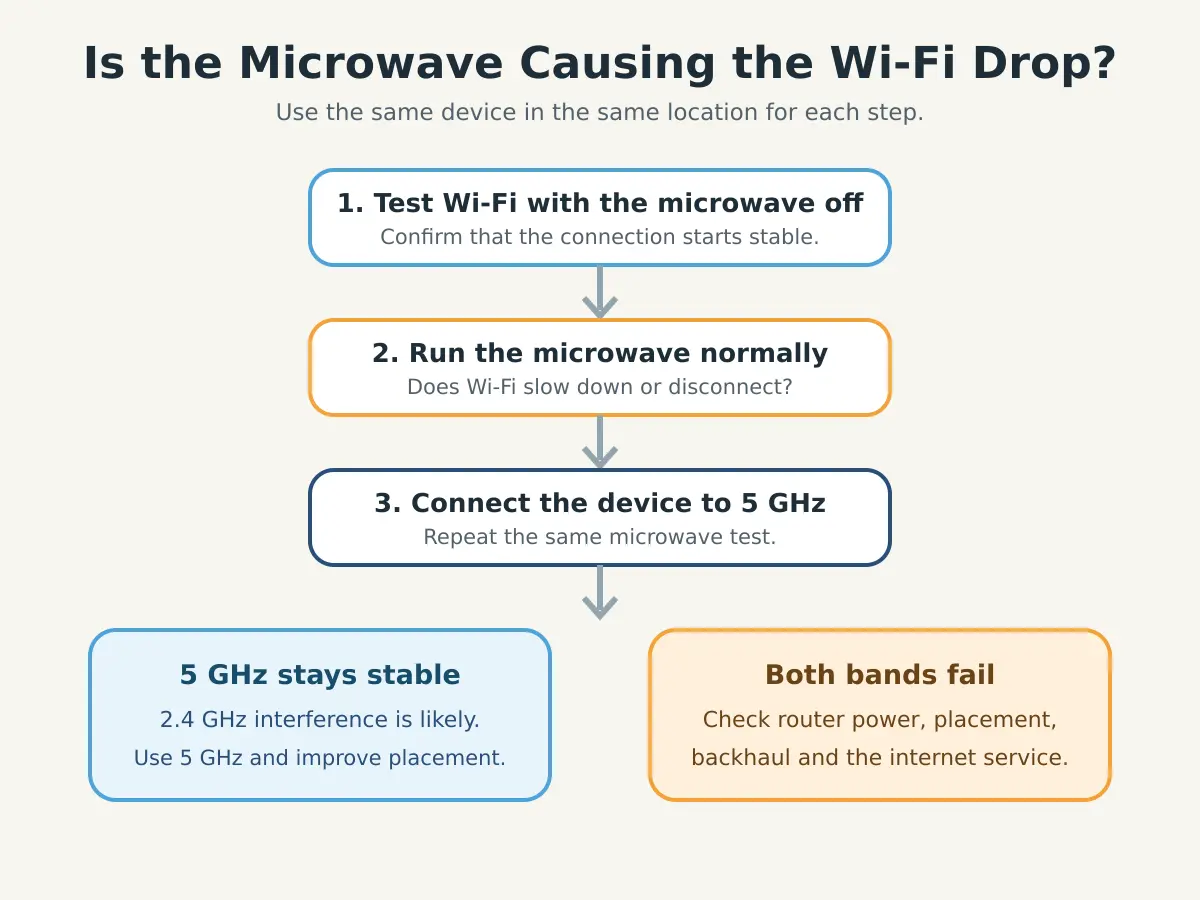
1. Test the Connection With the Microwave Off
Stand where the disconnection normally happens. Load a webpage, make a video call or run a speed test and note whether the connection is stable.
If Wi-Fi is already unreliable, start with our guide to fixing slow Wi-Fi in one room.
2. Run the Microwave Normally
Use the microwave normally and according to its manufacturer’s instructions. Observe whether the affected device slows down or disconnects shortly after the microwave starts and recovers when it stops.
Repeat the comparison once or twice. A repeatable on-and-off pattern is much stronger evidence than a single dropped connection.
3. Compare 2.4 GHz and 5 GHz
If your router displays separate network names, connect the same device to the 5 GHz network and repeat the test.
If the connection fails on 2.4 GHz but remains stable on 5 GHz, radio interference is the likely cause.
If both bands fail at the same time, the problem may instead involve router placement, power, backhaul or the internet service. Use our broader guide for a connection that shows Wi-Fi connected but no internet.
7 Practical Fixes for Microwave Wi-Fi Interference
1. Connect the Affected Device to 5 GHz
Switching from 2.4 GHz to 5 GHz is normally the most effective fix. The 5 GHz band does not share the microwave oven’s 2.45 GHz operating range and provides more non-overlapping Wi-Fi channels.
Look for a network name containing terms such as 5G, 5 GHz, High or Fast. Some routers use one network name for both bands and move compatible devices automatically. In that case, check the router app for band-selection or band-steering options.
The disadvantage is range. A 5 GHz signal generally does not travel through walls as well as 2.4 GHz, so poor router placement can still cause problems.
2. Move the Router Away From the Kitchen
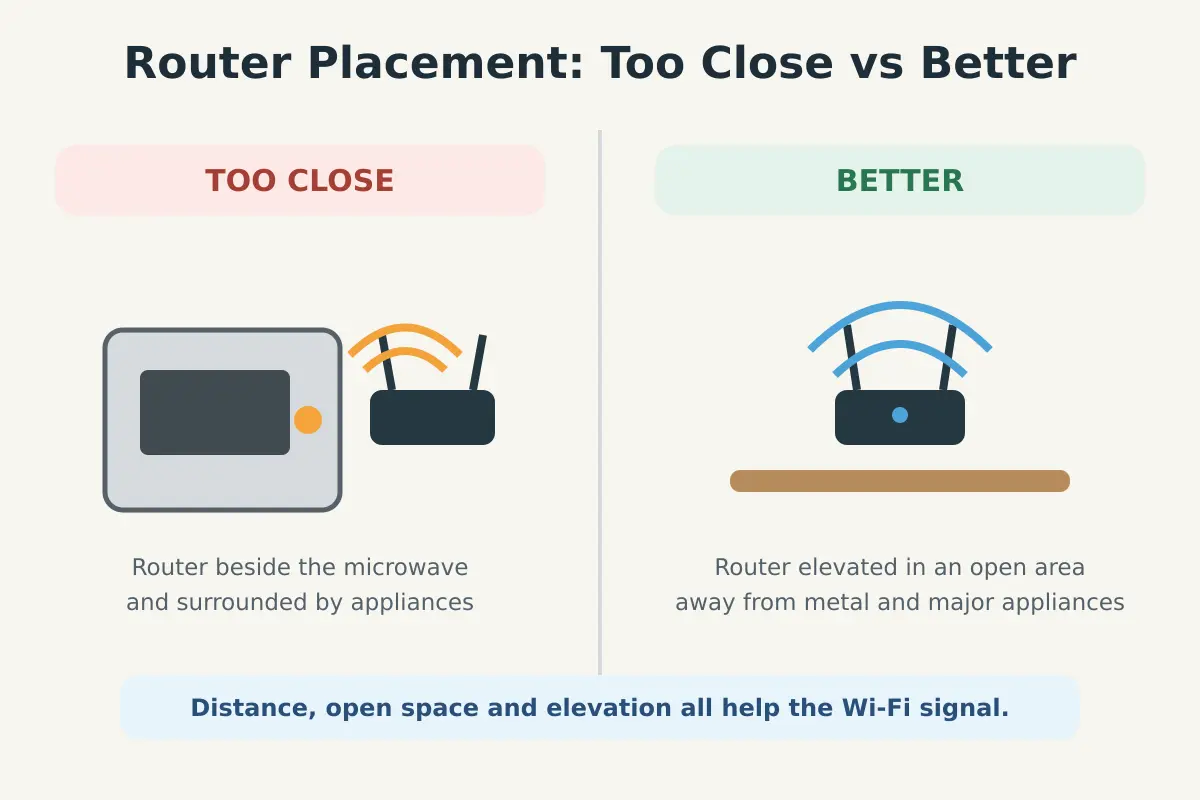
Do not place a Wi-Fi router directly beside, above or behind a microwave. Increase the distance between them and avoid positioning the router behind large metal appliances.
- Choose an open area near the center of the coverage zone.
- Elevate the router on a shelf.
- Keep it away from metal cabinets and major appliances.
- Reduce thick walls and obstructions where possible.
See our comparison of the best and worst places for a Wi-Fi router before relocating it. If the modem must remain in a utility cabinet, consider running Ethernet to a separate wireless access point in a more open location.
3. Improve the Signal Where Disconnections Occur
Interference is more likely to overwhelm a connection that is already weak. Moving the router closer, repositioning a mesh node or adding a properly placed access point can give the device a stronger signal.
Do not put a mesh node directly inside the dead zone. A wireless mesh node still needs a good connection to the main router. Place it between the router and the problem area. Where possible, use Ethernet backhaul between mesh nodes.
4. Use a Suitable 2.4 GHz Channel
In the United States and many other regions, channels 1, 6 and 11 are the standard non-overlapping choices for 2.4 GHz Wi-Fi.
Changing the channel may reduce interference from neighboring networks. It does not guarantee protection from a microwave, because microwave interference can affect a wider portion of the band. Start with the router’s automatic channel setting. If the problem continues, test channels 1, 6 and 11 individually.
5. Set the 2.4 GHz Channel Width to 20 MHz
Some routers allow a 40 MHz channel width on 2.4 GHz. Wider channels use more of an already crowded frequency range and can make interference and overlap harder to avoid.
For reliability, set the 2.4 GHz channel width to 20 MHz. The setting may appear under Wireless settings, Advanced Wi-Fi, Radio settings or Channel bandwidth. This can reduce maximum theoretical speed, but 2.4 GHz devices often gain more from stability.
6. Use Ethernet for Fixed Devices
A television, desktop computer, game console or streaming box does not necessarily need Wi-Fi. If it remains in one place, connect it to the router or mesh node with Ethernet.
A wired connection is not affected by 2.4 GHz radio interference. Moving fixed devices to Ethernet also reduces traffic on the wireless network.
7. Check the Microwave for Physical Damage
Wi-Fi interference by itself does not prove that a microwave is unsafe or defective. Modern microwave ovens are designed to contain microwave energy and must meet applicable safety standards.
However, stop using the appliance and contact its manufacturer if you notice damage involving the door, hinges, latches or seals, or if the door does not close properly. The U.S. Food and Drug Administration recommends contacting the manufacturer when these parts are damaged. Do not remove the microwave’s casing or attempt an internal repair yourself.
What About Devices That Only Support 2.4 GHz?
Many smart plugs, cameras, sensors and older printers support only 2.4 GHz. Moving them to 5 GHz is not an option.
- Increase the distance between the access point and the microwave.
- Keep the device away from large metal appliances.
- Use a nearby access point or mesh node with a strong backhaul.
- Set 2.4 GHz to a 20 MHz channel width.
- Test channels 1, 6 and 11.
- Update the router and device firmware.
- Use Ethernet where the device supports it.
A separate 2.4 GHz network name can simplify setup, but creating another network does not remove interference by itself.
Should You Replace the Router or Microwave?
Do not replace either device before completing the band comparison. If 5 GHz works normally, the router and internet connection are probably functioning. Better placement or improved coverage may be all you need.
Consider replacing or supplementing the router when it offers only 2.4 GHz, its 5 GHz coverage cannot reach the problem area, it lacks basic channel controls, or it no longer receives security updates.
Do not assume the microwave needs replacement merely because 2.4 GHz Wi-Fi slows while it runs. Contact the manufacturer if the appliance is physically damaged or operates abnormally.
Quick Answer
When Wi-Fi disconnects as soon as the microwave starts, the affected device is usually using a weak 2.4 GHz connection. Connect it to 5 GHz or 6 GHz first. If that solves the problem, improve router placement and 2.4 GHz coverage for devices that cannot use the higher bands.
The most reliable long-term setup is a well-positioned dual-band or tri-band router, wired backhaul where practical, and Ethernet for stationary equipment.
Frequently Asked Questions
Can a microwave completely disconnect Wi-Fi?
Yes. Strong interference can cause lost packets, very slow speeds or a temporary disconnection, especially on a weak 2.4 GHz connection. The connection often returns when the microwave stops.
Does a microwave interfere with 5 GHz Wi-Fi?
Microwave ovens primarily overlap with the 2.4 GHz Wi-Fi band. Moving the affected device to 5 GHz is therefore one of the most effective fixes, although walls and poor coverage can still weaken 5 GHz Wi-Fi.
Will changing the Wi-Fi channel fix microwave interference?
It may help, but it is not guaranteed. Channels 1, 6 and 11 can reduce overlap with other Wi-Fi networks, while microwave interference may affect a broader portion of the 2.4 GHz band.
Does Wi-Fi interference mean the microwave is leaking dangerously?
Not necessarily. Wi-Fi equipment uses very low-power radio signals, so interference does not by itself prove that a microwave is unsafe. Contact the manufacturer if the door, hinges, latches or seals are damaged.
Why does only one device disconnect?
That device may be farther from the router, have a weaker antenna or support only 2.4 GHz. Other devices may remain connected because they are using 5 GHz or have a stronger signal.