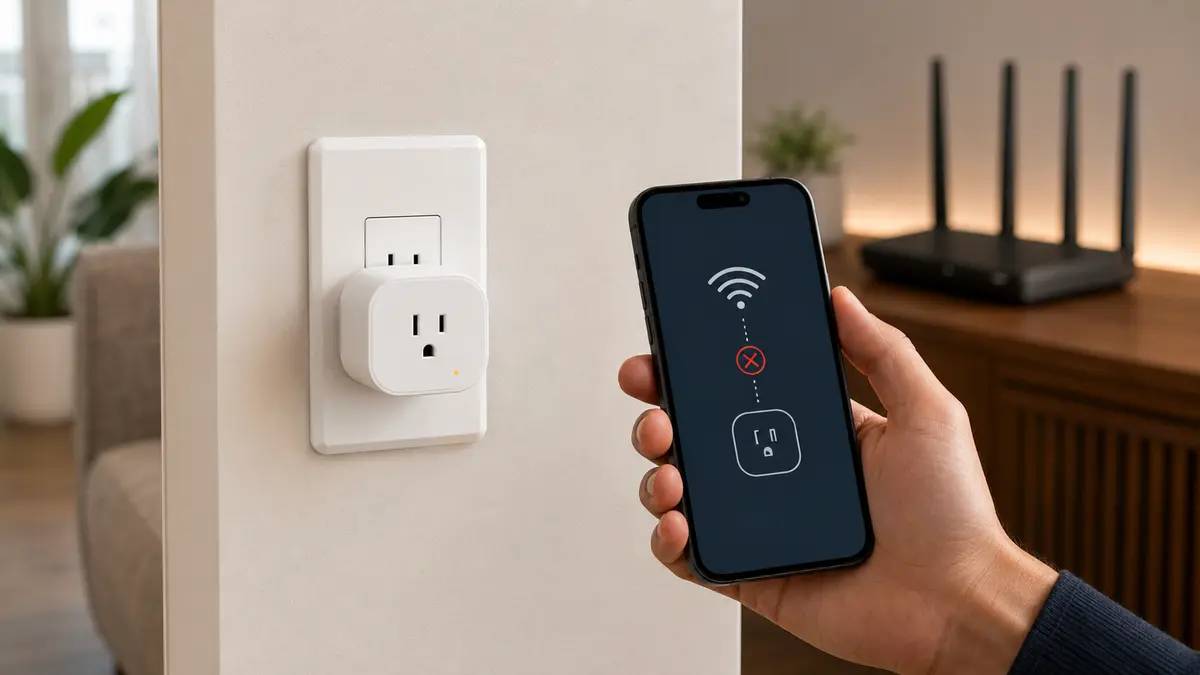
If your smart plug won’t connect to 2.4 GHz WiFi, the plug is not necessarily defective. The usual causes are a phone using the wrong band during setup, band steering, an incompatible security mode, a weak signal, or a plug that is not fully in pairing mode.
The fastest approach is to confirm that 2.4 GHz is enabled, move the plug close to the router, connect your phone to the same network, reset the plug, and try setup again. Work through the fixes below in order so you can identify the real cause instead of changing several router settings at once.
Why Smart Plugs Often Need 2.4 GHz WiFi
Many smart plugs use 2.4 GHz because it travels farther through walls than 5 GHz and requires less expensive radio hardware. A plug sends very little data, so reliability and range matter more than maximum speed.
This does not mean a 2.4 GHz plug cannot work with a dual-band or tri-band router. It normally can. The problem usually occurs during setup, when the phone, router and plug do not agree on how the device should join the network.
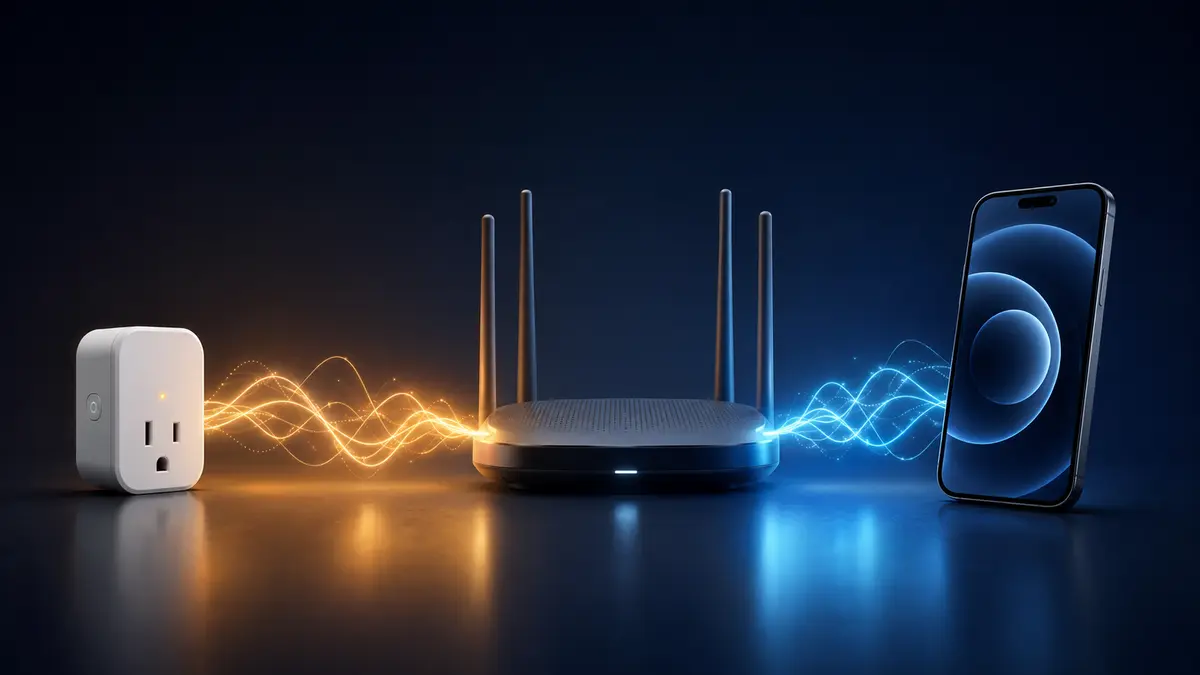
For example, TP-Link’s Kasa FAQ states that its Kasa products use 2.4 GHz wireless connections. Amazon’s smart-home guidance also notes that most WiFi smart-home devices work on 2.4 GHz.
Before You Change Anything: Run This Quick Check
- Confirm that ordinary devices can access the internet through the router.
- Check the plug’s manual or product page for its supported WiFi band and security modes.
- Place the plug in an outlet within a few feet of the router for initial setup.
- Make sure the plug’s indicator is flashing in the pattern required for pairing.
- Temporarily turn off mobile data and any VPN on the phone used for setup.
- Open the manufacturer’s app and retry the normal setup process.
If phones and computers also cannot get online, troubleshoot the network first with our guide to WiFi connected but no internet. If only the smart plug fails, continue below.
12 Fixes When a Smart Plug Won’t Connect to 2.4 GHz WiFi
1. Confirm That the Router Is Broadcasting 2.4 GHz
Open the router app or administration page and check that the 2.4 GHz radio is enabled. Some routers offer a single network name for every band, while others show separate names such as Home and Home-5G.
A single combined name does not mean 2.4 GHz is missing. It usually means the router uses band steering. Look at the WiFi or radio settings rather than judging by the network name alone.
2. Connect the Setup Phone to the Correct Home Network
Your phone should be connected to the home network you want the plug to use. Avoid a cellular connection, public hotspot or unrelated guest network during setup.
If the router has separate network names, join the 2.4 GHz name before opening the plug’s app. If both bands share one name, leave the phone on that network first; many well-designed setup processes can still pass the 2.4 GHz credentials to the plug.
3. Move Farther From a Mesh Point to Encourage 2.4 GHz
Some mesh systems do not let you manually select a band. In that situation, move the phone and plug farther from the nearest router or mesh point, but keep them close to each other. Because 5 GHz weakens faster with distance, the phone may move to 2.4 GHz.
Google’s Nest WiFi guidance recommends this distance method when a phone cannot select its WiFi band manually. After the phone changes bands, reopen the smart-plug app and retry setup.
4. Move the Plug Close to the Router for Initial Pairing
A plug may receive some WiFi in its final location but still have too little signal for reliable setup. Pair it temporarily in a nearby outlet, update its firmware, and then move it to the intended room.
If it connects near the router but goes offline in the final location, the real issue is coverage. Review the best and worst places for a WiFi router, and avoid hiding the router behind metal cabinets or large appliances.
5. Enter the WiFi Name and Password Again
WiFi names and passwords are case-sensitive. Delete the saved entry and type it again instead of relying on autofill. Check for accidental spaces, similar characters and an old password saved by the app.
If the network name is hidden, temporarily making the SSID visible can simplify setup. You can hide it again afterward, although hiding an SSID is not a meaningful security substitute for strong encryption and a good password.
6. Reset the Smart Plug and Enter Pairing Mode Again
A flashing light does not always mean the plug is in the correct pairing mode. Some plugs support both a fast-blinking normal mode and a slow-blinking access-point mode.
Follow the manufacturer’s instructions for your exact model. This normally involves holding the plug’s button until the indicator changes, but the timing and light pattern vary. A factory reset removes the plug’s previous network information, so you will need to add it to the app again.
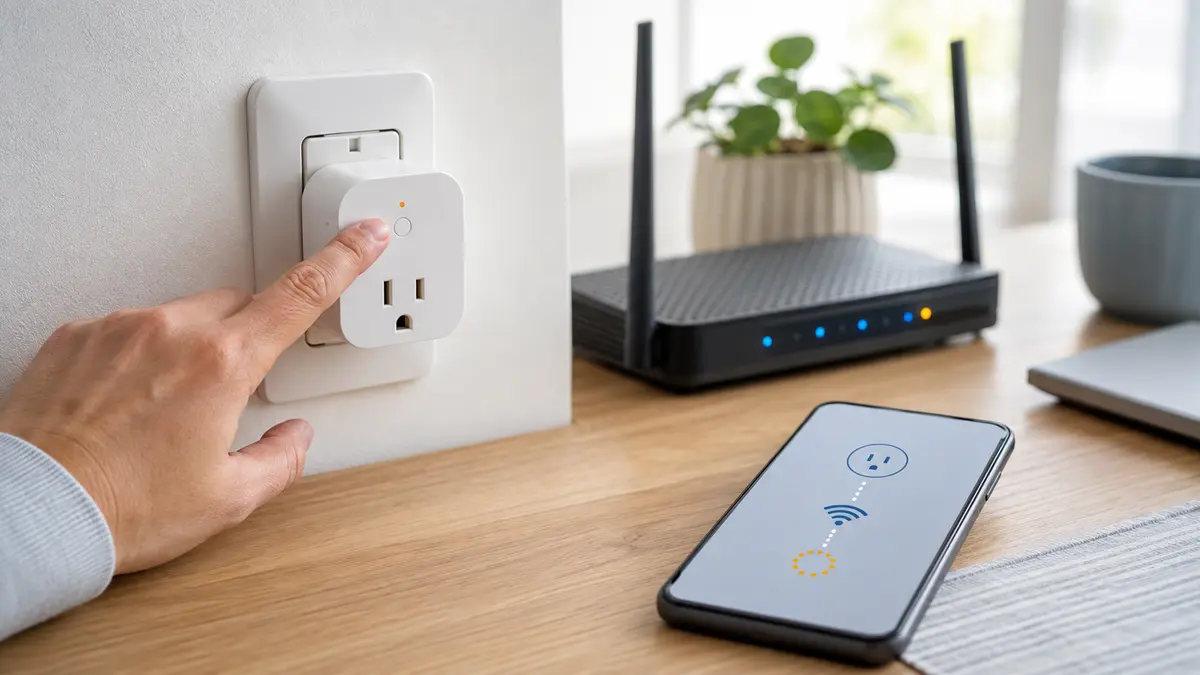
7. Temporarily Disable Smart Connect or Band Steering
If a combined network name repeatedly causes setup to fail, temporarily disable Smart Connect or band steering. Connect the phone to the 2.4 GHz network, pair the plug, and then restore the normal router setting.
Do this only as a troubleshooting test. Many plugs continue working after the bands are recombined because the saved network name and password remain the same. TP-Link lists Smart Connect and band steering among settings that may affect Kasa connectivity in its device-offline troubleshooting guide.
8. Check WPA2 and WPA3 Compatibility
Older smart plugs may not support a WPA3-only network. If the manufacturer’s specifications list only WPA2, change the 2.4 GHz security mode to WPA2 or WPA2/WPA3 transitional mode, then retry.
Do not disable WiFi security or leave the network open. Use the newest secure mode supported by both the router and the plug. If a very old device supports only obsolete protection, replacement is usually better than weakening the entire home network.
9. Allow the App’s Local Network, Bluetooth and Location Permissions
Smart-home apps may need local-network access to discover the plug, Bluetooth for initial provisioning, and location permission to read nearby WiFi information. Open the phone’s settings and verify the permissions requested by the manufacturer’s setup instructions.
You can review or reduce optional permissions after setup. During troubleshooting, also disable a VPN, ad-blocking DNS profile or aggressive privacy relay temporarily if it prevents communication with devices on the local network.
10. Use Compatible 2.4 GHz Radio Settings
For maximum compatibility, set the 2.4 GHz network to a mixed 802.11 b/g/n or legacy-compatible mode if your router offers it. A 20 MHz channel width is generally more stable for low-bandwidth smart-home devices than 40 MHz in a crowded area.
Leave channel selection on automatic first. If the connection remains unstable, test channels 1, 6 and 11 individually. Only use channels permitted in your country or region.
11. Check Guest Network and Device-Isolation Settings
A dedicated 2.4 GHz guest or IoT network can make pairing easier, but some guest networks block devices from communicating with phones, hubs or voice assistants. Look for settings named client isolation, AP isolation or block local access.
If the plug pairs but the app cannot find it locally, move both devices to the main network for testing. Do not disable isolation permanently until you understand the security tradeoff.
12. Restart and Update Everything
Power-cycle the plug, restart the phone and reboot the router. Then update the smart-home app and router firmware before trying again. If the plug connects, immediately check for a device firmware update in its app.
Make one change at a time and record the result. Randomly changing several advanced settings can solve the immediate problem while making the network less secure or less stable.
What If the Smart Plug Worked Before You Changed Routers?
The plug still remembers the old network name and password. The simplest options are to reset and pair it again, or configure the new router with the same SSID, password and compatible security mode used by the old router.
Using the old credentials can reconnect several smart-home devices at once, but it will not help if the new router is WPA3-only or has disabled 2.4 GHz. Check those settings before assuming the plugs have failed.
What If the Plug Connects and Then Goes Offline?
A plug that pairs successfully but later disappears usually has a signal, DHCP or router-compatibility problem rather than a setup problem. Check its signal strength in the app, reserve an IP address if the manufacturer recommends it, update firmware and test the plug close to the router.
If the final outlet is in a room with weak coverage, see our guide to fixing slow WiFi in one room. Large metal appliances, utility cabinets and distant mesh nodes can make an otherwise functional smart plug unreliable.
When Should You Replace the Smart Plug?
Consider replacement if the plug cannot enter pairing mode, will not connect to a known-compatible test network, requires obsolete WiFi security, no longer receives firmware updates, becomes unusually hot, is cracked, or shows any sign of electrical damage.
Stop using a damaged or overheating plug immediately. Network troubleshooting should never involve opening the casing or attempting an electrical repair.
Frequently Asked Questions
Can a 2.4 GHz smart plug work with a 5 GHz router?
Yes, if the router is dual-band and still broadcasts 2.4 GHz. The plug connects to 2.4 GHz while phones and computers can use 5 GHz. A 5 GHz-only router will not support a 2.4 GHz-only plug.
Do I need to turn off 5 GHz permanently?
No. Temporarily disabling 5 GHz or band steering can help diagnose a setup problem, but most smart plugs continue working after the normal dual-band configuration is restored.
Why can my phone see the network but the smart plug cannot?
Your phone may support 5 GHz, 6 GHz and WPA3 while the plug supports only 2.4 GHz and WPA2. Weak signal, band steering and unsupported channel or security settings can also affect the plug without affecting the phone.
Will splitting the 2.4 GHz and 5 GHz network names help?
It can make setup easier because you can deliberately connect the phone to 2.4 GHz. It is not always necessary, and separate names can make network management more complicated.
Can I use a phone hotspot to test the plug?
Yes, if the hotspot can broadcast 2.4 GHz and you have a second device available to run the setup app. A successful hotspot test suggests the plug works and the home router configuration is the likely cause.