When Wi-Fi is fast in most of your home but slow in one room, your internet plan usually is not the problem. The weak link is more often the radio path between that room and the router: distance, walls, interference, band choice, or poor access-point placement.
Before you buy a mesh kit or a faster router, run the short comparison below. It separates an internet problem from a coverage problem and tells you which fixes are worth trying first.
The quick answer
If the same device is fast near the router and slow only in one room, the room has a Wi-Fi coverage or interference problem. Start by moving the router into the open and closer to the center of the home. Then compare 2.4 GHz with 5 GHz, remove nearby interference, and retest. If the room remains weak, add a wired access point or a well-placed mesh node rather than putting a repeater inside the dead zone.
Run this two-minute room test first
Use one phone or laptop for the entire test. Changing devices halfway through can mislead you because older Wi-Fi hardware may be slower even in a strong signal.
- Stand a few feet from the router and run a speed test. Record download speed, upload speed, and latency.
- Take the same device to the slow room, wait about 30 seconds for it to reconnect or change bands, and run the same test again.
- Repeat both tests once. A single result can be distorted by an update, cloud backup, or another device using the connection.
- If possible, test a second device in the slow room. This reveals whether the problem follows the room or only one device.
If every room is slow, investigate the modem, internet service, router load, or ISP connection first. If only one device is slow everywhere, troubleshoot that device. If multiple devices are slow only in the same room, continue with the fixes below.
Why one room gets worse Wi-Fi
Wi-Fi signals weaken with distance and lose more energy when they pass through solid objects. Drywall is usually manageable, but brick, concrete, tile, mirrors, metal ductwork, appliances, and foil-backed insulation can create a much harder path. A room may be physically close to the router while still sitting behind several signal-blocking materials.
Frequency matters too. Higher-frequency bands can deliver more capacity but generally cover less distance and have more difficulty passing through obstacles. That is why a device may perform well on 5 GHz or 6 GHz near the router, then struggle in a room where 2.4 GHz remains usable.
Interference can make the problem inconsistent. Nearby networks compete for airtime, while microwave ovens, baby monitors, cordless equipment, Bluetooth devices, and some poorly shielded electronics can add radio noise. The result may look like full signal bars with slow or unstable performance.
9 fixes to try, in order
1. Move the router into the open
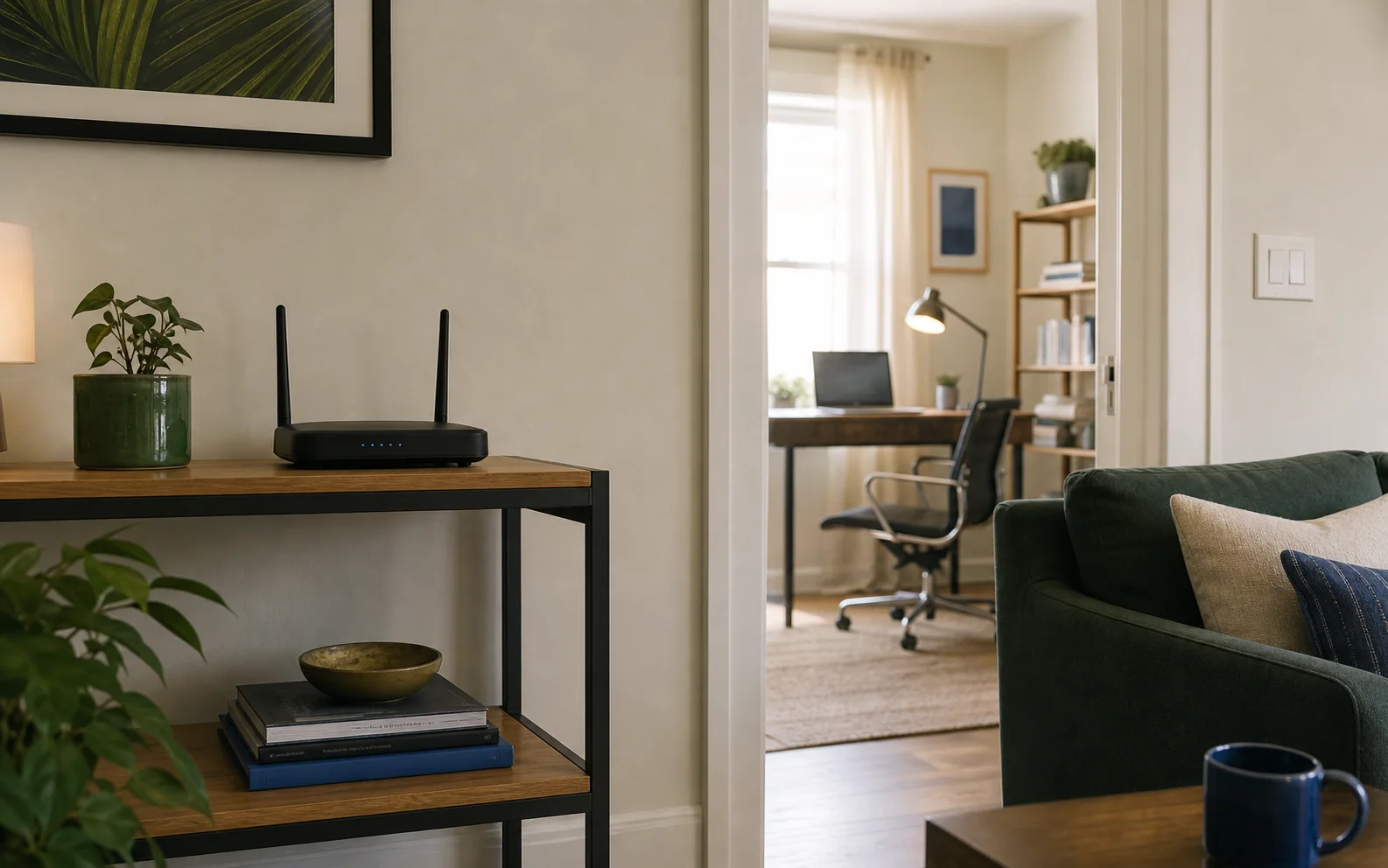
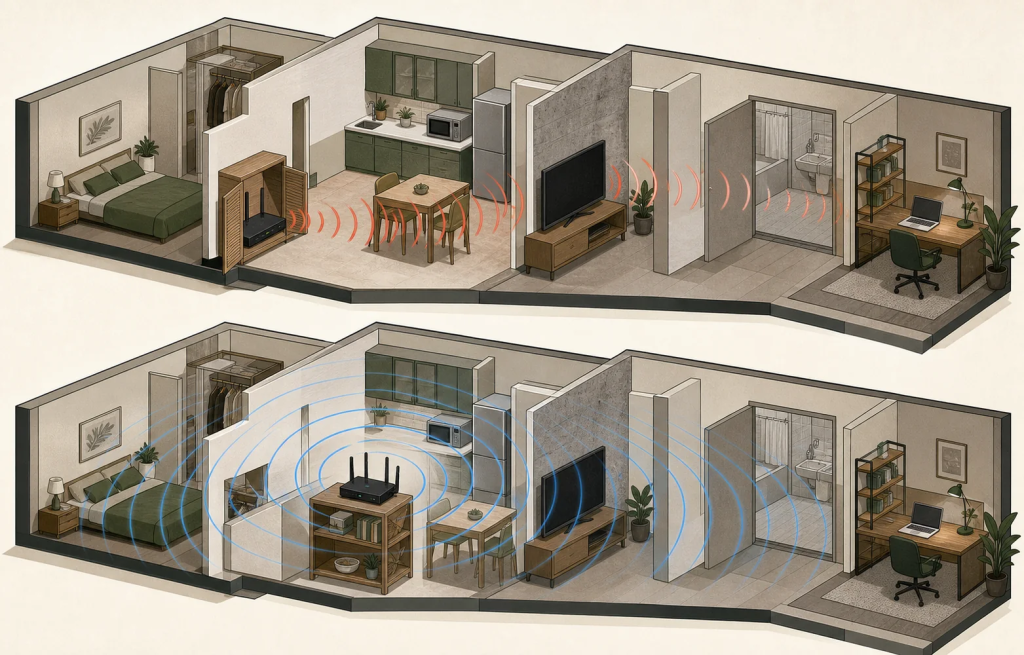
A router hidden inside a television cabinet, utility closet, basement corner, or behind large furniture begins at a disadvantage. Put it on an open shelf or stand, off the floor, with space around it. Avoid placing it directly beside a television, microwave, large speaker, metal cabinet, or aquarium.
If the modem location limits you, a longer Ethernet cable between the modem and router may be the cheapest upgrade you can make. Even moving the router a few feet away from an obstruction can change the path into the slow room.
2. Move it toward the center of the home
A router at one end of a home spends much of its coverage outside the building. A more central location gives distant rooms a shorter and usually less obstructed route. Central does not have to mean the exact center of the floor plan; prioritize the rooms where reliable Wi-Fi matters most.
3. Try a small position or antenna change
Radio reflections can create strong and weak spots surprisingly close together. Shift the router left, right, higher, or farther from the wall, then repeat the same room test. If your router has adjustable external antennas, try different orientations rather than pointing every antenna in exactly the same direction.
4. Compare 2.4 GHz and 5 GHz
For a distant room, 2.4 GHz may provide a more stable connection even when its maximum speed is lower. Near the router, 5 GHz is often the better choice. If your router uses one network name for all bands, its band-steering feature normally makes this decision automatically, but clients do not always roam at the ideal moment.
If your router allows temporary separate band names, compare them as a diagnostic step. Do not permanently create a confusing collection of network names unless you have a clear reason to manage bands manually.
5. Check for interference in that room
Notice whether the slowdown appears only when a microwave, wireless camera, baby monitor, television, USB 3 device, or other electronics are active. Temporarily switch nearby equipment off and retest. Also move the client device away from large metal objects or the back of a television.
6. Let the router choose a cleaner channel
In apartments and dense neighborhoods, several networks may share the same channels. Start with your router’s automatic channel setting and current firmware. If performance remains poor, use the router’s own network scan—when available—to identify congestion before changing channels manually.
Avoid copying a channel recommendation from a random article. The best choice depends on the networks around your home, and that environment changes over time.
7. Restart and update, but do not treat reboots as a cure
Restart the modem and router once, then install current router firmware using the manufacturer’s app or administration page. This can clear a temporary fault and deliver stability or security fixes. However, a router that needs frequent reboots probably has a deeper configuration, heat, hardware, or ISP problem.
8. Test Ethernet to separate Wi-Fi from internet speed
If a laptop connected directly to the router with Ethernet is also slow, moving the router will not fix the underlying connection. Check the modem, cables, router WAN port, and ISP service. If Ethernet is fast while the problem room remains slow, the local wireless path is the issue.
9. Extend coverage from a location that still has a good signal
If placement and settings cannot overcome the building layout, extend the network. The best option is usually a wired access point connected by Ethernet. Ethernet backhaul gives the new access point a reliable path to the router instead of asking it to receive and retransmit an already weak wireless signal.
When running Ethernet is impractical, a mesh system can be easier to manage. Place the mesh node between the primary router and the problem room—not inside the dead zone. The node needs a good connection back to the main router before it can provide a good connection to your devices.
A basic range extender can help in a small home, but placement is critical and performance may be less consistent. Treat it as a targeted solution, not an automatic upgrade.
What usually does not fix a one-room problem
- Buying a faster internet plan: it cannot repair a weak radio path inside the home.
- Changing DNS: DNS can affect how quickly a name lookup completes, but it does not strengthen Wi-Fi or improve coverage.
- Putting an extender in the dead zone: it cannot repeat a connection it barely receives.
- Adding several repeaters: overlapping unmanaged repeaters can create more roaming and interference problems.
- Judging only by signal bars: bars are not standardized and do not show congestion, packet loss, or available airtime.
Should you buy a mesh system?
Mesh makes sense when several rooms or floors need better coverage, when the router cannot be moved, or when you want one system to manage roaming and updates. It is less compelling when only one fixed desk needs service and you can run Ethernet; a wired access point is often faster, more predictable, and cheaper.
Before buying, sketch the path between the router and the problem room. If that path crosses concrete, brick, metal, or multiple floors, choose a system that supports Ethernet backhaul—or plan a wired access point from the beginning.
Frequently asked questions
Why is Wi-Fi slow in my bedroom but fast in the living room?
The bedroom may be farther from the router or separated by denser walls, mirrors, plumbing, appliances, or metal ductwork. Compare the same device in both rooms. A large room-to-room difference points to coverage or interference rather than your internet plan.
Will 2.4 GHz help in a distant room?
Often, yes. It generally reaches farther and passes through obstacles better than higher-frequency bands, although it offers less capacity and may face more interference. Test both bands instead of assuming the faster-rated band will be faster in every room.
Where should a mesh node go?
Place it between the primary router and the weak room, where it can still receive a strong connection from the router. A node placed inside the dead zone usually has too little backhaul capacity to help.
Sources and further reading
- Google Home: Troubleshoot slow internet on Google Nest Wifi or Google Wifi
- Google Home: Where to place your Wi-Fi devices
- Google Home: Mesh test and placement guidance
- Apple Support: Recommended settings for Wi-Fi routers and access points
- NETGEAR Support: Resolving poor wireless range or weak Wi-Fi signal